Adjust is a mobile measurement partner (MMP) that attributes app installs and in-app events to your marketing campaigns. Connecting Adjust as a SignalSight source lets you pull attribution data into SignalSight and forward it to Meta, TikTok, Google, and other destinations — with mapping, deduplication, and delivery handled in one place.
Before you start
You need a SignalSight account and an Adjust app published on the marketplaces you plan to connect. Have your Marketplace IDs ready — for example, the Google Play package name for Android and the App Store ID for iOS. New users can begin with Account Creation.
Get Started
The Adjust source setup runs inside the SignalSight tracker wizard. You configure your marketplaces first, complete the tracker, then register the generated callback URL in Adjust so events can flow into SignalSight.
Create a Tracker
Open Signal → Trackers and click Create Tracker to launch the wizard.
Step 1 — Adjust Source
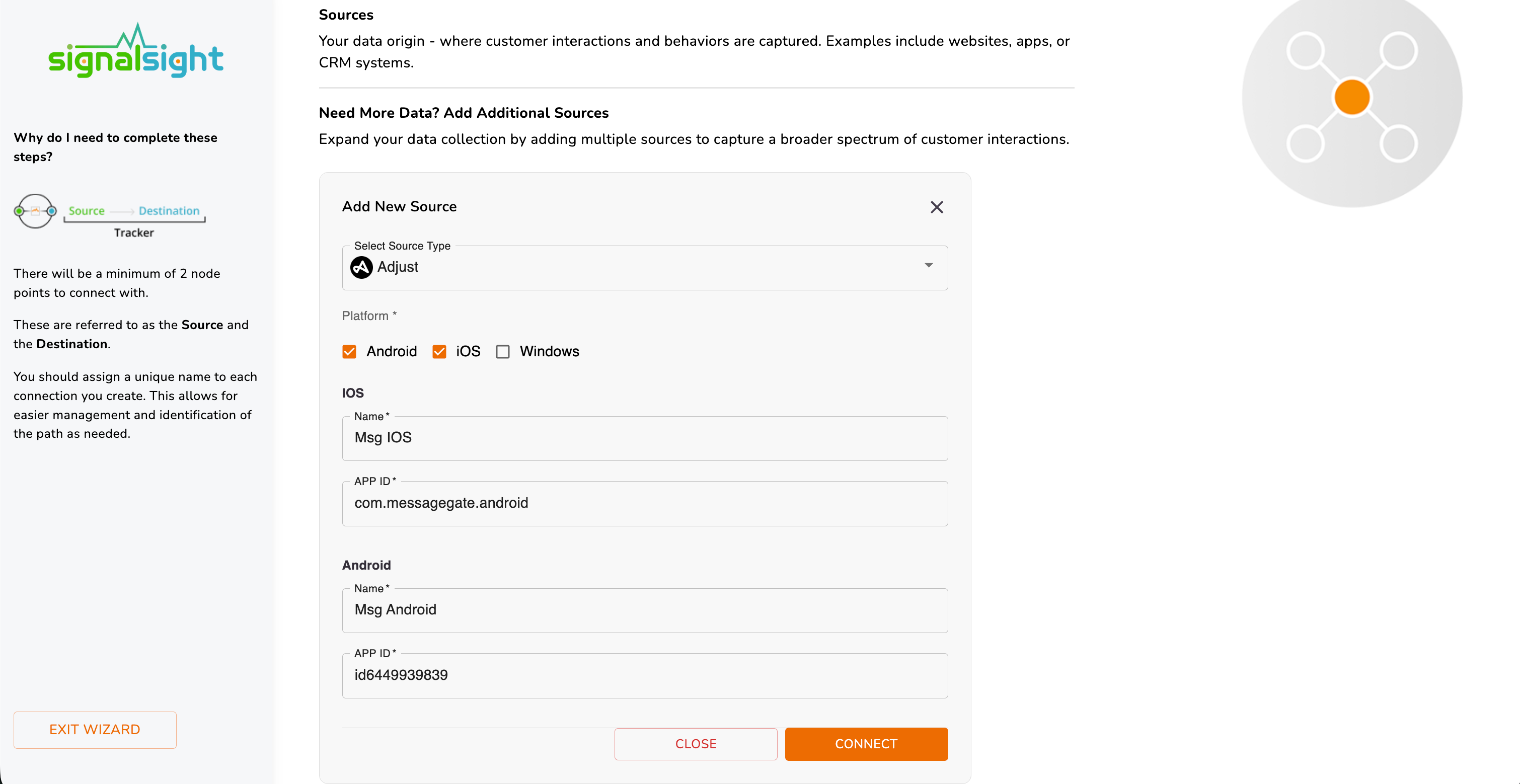
- On the source selection screen, choose Adjust as your source type.
- Under Platform, select every marketplace you want to connect — Android, iOS, and/or Windows as applicable.
- For each selected platform, enter a Name (a label for that app store connection) and the Marketplace ID:
- Android — your Google Play package name (e.g.
com.example.app). - iOS — your App Store ID (e.g.
id6449939839). - Windows — your Microsoft Store product identifier.
- Android — your Google Play package name (e.g.
- Click Connect to save the source and continue through the wizard.
Note
Event mapping is not required during setup. After the tracker is created, open Edit Mapping on the tracker detail page to configure how Adjust events map to your destinations. Avoid changing mappings on live campaigns that have already completed learning, as this can restart the optimization phase on ad platforms.
Step 2 — Choose a Destination
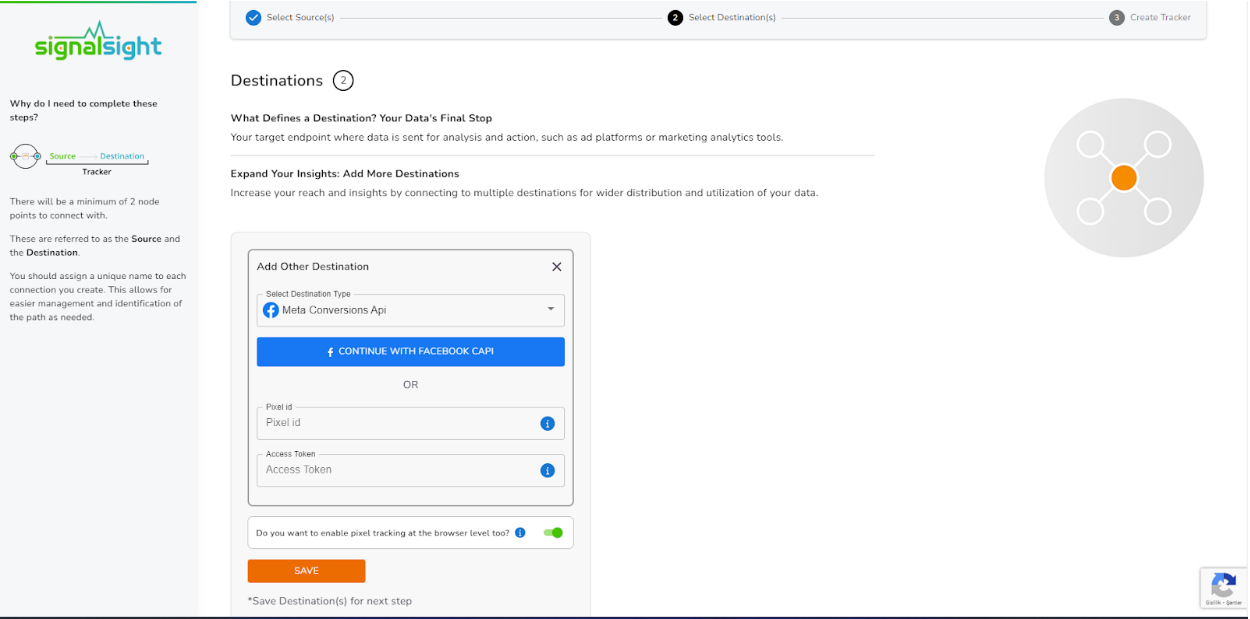
Select where Adjust data should be sent — Meta Conversions API, TikTok Events API, Google, or other supported destinations. Configure each destination with the credentials required by that platform.
Step 3 — Name and Complete
Give your tracker a name, review the source and destination summary, and click Complete to finish the wizard. SignalSight generates a Callback URL for this tracker — you will need it for the Adjust configuration in the next section.
Add the Callback URL in Adjust
After the tracker is created, open the tracker detail page in SignalSight and copy the Callback URL shown in the Adjust overview. Then register that URL in your Adjust dashboard so install and in-app events are forwarded to SignalSight.
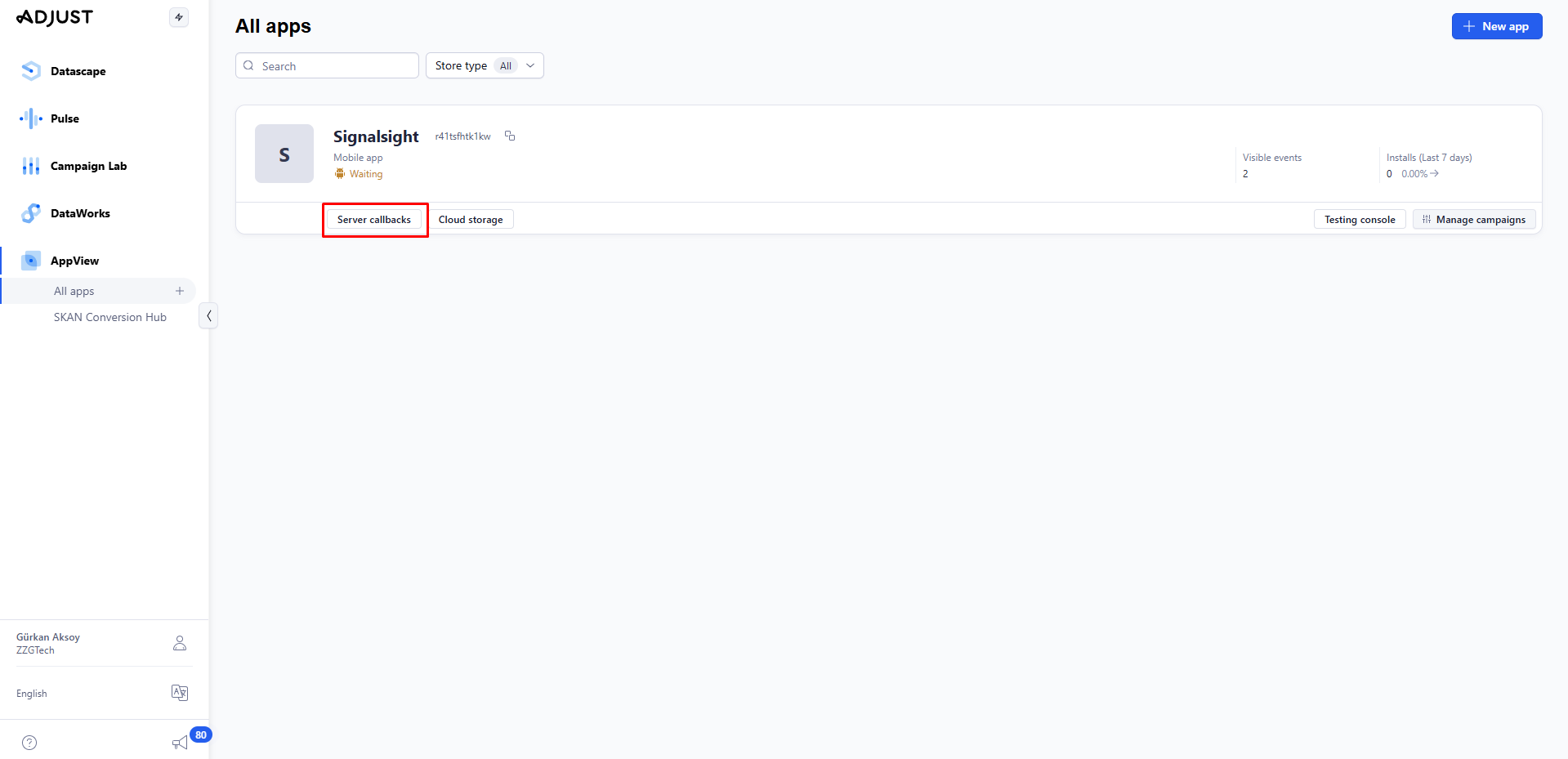
- In Adjust, go to AppView → All Apps and open the app you connected in SignalSight.
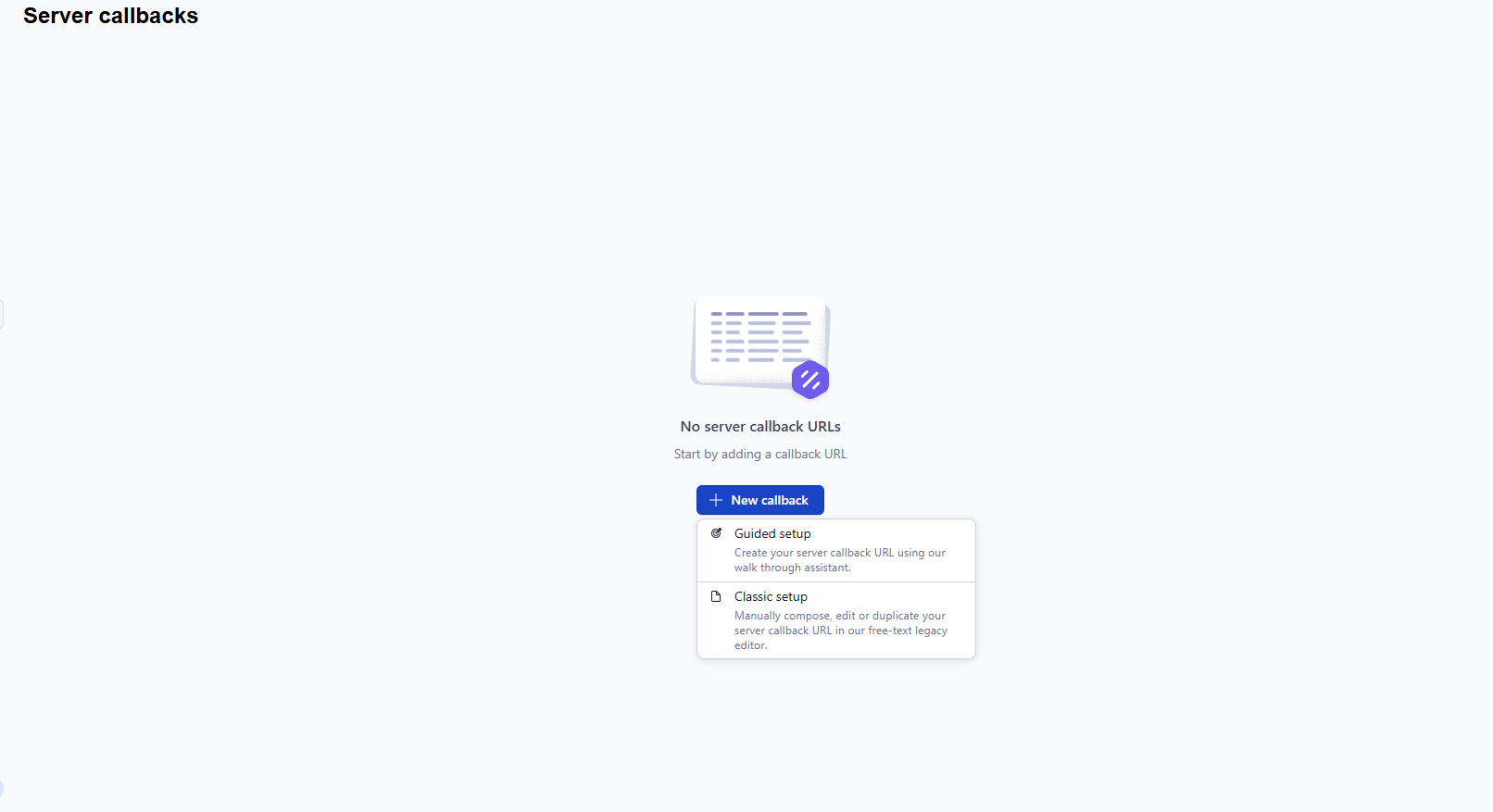
- Click Server Callbacks.
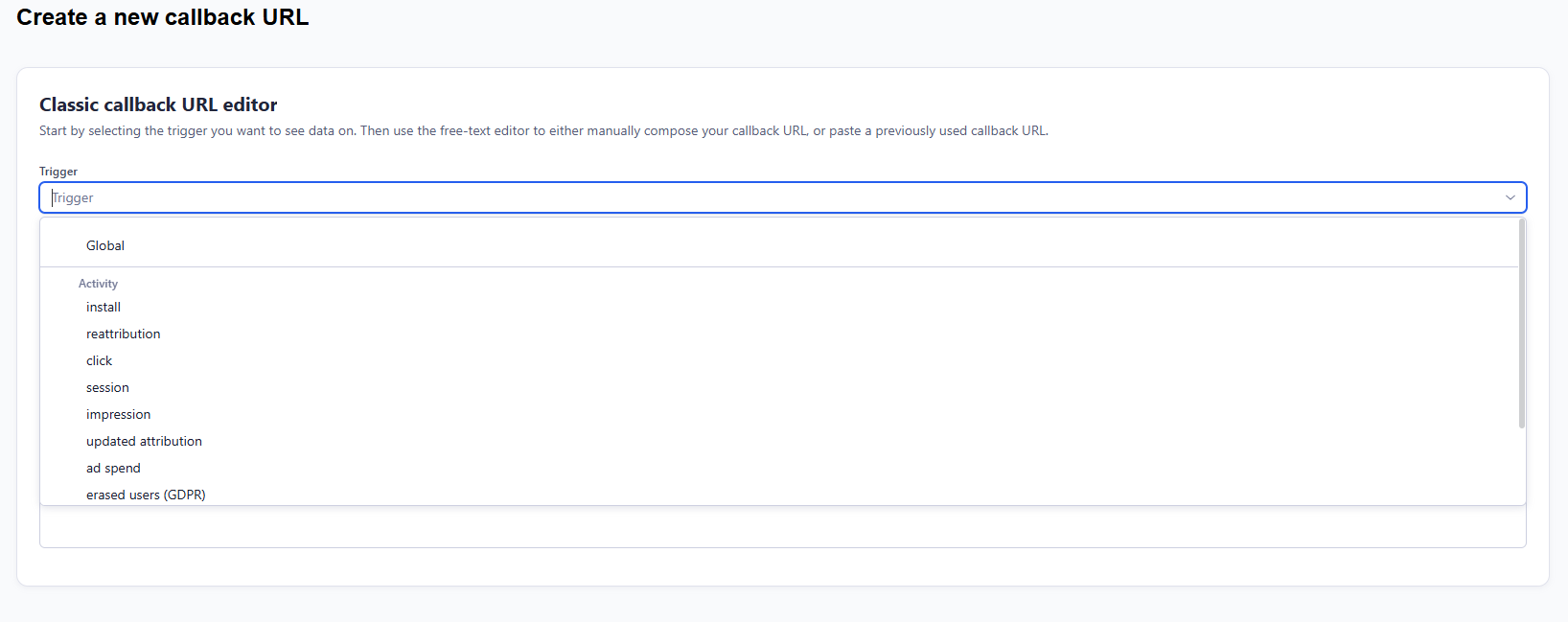
- Select New Callback → Classic setup.
- Paste the SignalSight Callback URL into the events you want to forward. At minimum, include Global and Install; add purchase and other key funnel events as needed.
- Use the same Callback URL for each selected event, then save.
Recommendation
Include the Install event and any event that corresponds to purchase so SignalSight receives the signals needed for campaign optimization.

Manage Your Tracker
Open the tracker at any time to copy the Callback URL again, update event mapping, or review delivery history. The testing view shows sample event data once Adjust has forwarded events to SignalSight.
Web2App and Landing Pages
If Adjust is your MMP, you can pair this source with a SignalSight landing page to route users from web campaigns into your app store listing. See Landing Page Creation for the full setup, or Adjust — Web2App for end-to-end Web2App configuration.
What is a Marketplace ID?
The Marketplace ID identifies your app on a specific app store. For Android, use your Google Play package name (e.g. com.example.app). For iOS, use your numeric App Store ID (e.g. id6449939839). For Windows, use your Microsoft Store product identifier.
When do I add the Callback URL in Adjust?
After you complete the tracker in SignalSight. The Callback URL is generated when the tracker is created — copy it from the tracker detail page and paste it into Adjust under Server Callbacks for the events you want to forward.
Can I connect multiple platforms in one source?
Yes. Select Android, iOS, and/or Windows in the Platform section and enter a Name and Marketplace ID for each marketplace you enable.
How is this different from Adjust Web2App?
This guide covers Adjust as a general event source in SignalSight. The Web2App guide adds landing page setup and OneLink configuration on top of the same MMP connection.