Google BigQuery is a cloud data warehouse where teams store CRM exports, POS transactions, loyalty records, and other first-party datasets. As a SignalSight source, BigQuery lets you pull structured rows on a schedule and route them to the destinations that match your business goal — without building custom ETL pipelines for every ad platform.
One source, multiple use cases
BigQuery is not limited to a single workflow. After you connect a table and configure sync settings, the destination you choose in the tracker determines how SignalSight uses the data:
- Offline sales & conversions — Send in-store purchases, CRM conversions, or other offline events to Meta, TikTok, Google, and similar platforms for attribution, ROAS optimization, and campaign learning.
- Audience sync — Push hashed customer identifiers to an audience destination such as Meta Custom Audiences so ad platforms can continuously learn from your warehouse data and refine targeting automatically.
The source setup — Google authentication, project/dataset/table selection, update schedule, and field mapping — is the same regardless of which outcome you need. You decide the purpose when you create the tracker and pick a destination.
Before you start
You need a SignalSight account and a Google Cloud project with BigQuery enabled. Ensure the Google account you authenticate with has BigQuery Data Viewer (or equivalent read access) on the target dataset. Your table should include the identifiers required for your use case — for example, hashed email and phone for audience sync, or transaction fields for offline sales. New users can begin with Account Creation.
Get Started
BigQuery sources are created inside the SignalSight tracker wizard or from the Sources step before you connect a destination. The flow is: authenticate with Google, select where your data lives, define how often SignalSight should sync, map columns to SignalSight fields, then attach the source to a tracker with the right destination type.
Create a BigQuery Source
Open Signal → Trackers → Create Tracker, or add a source from the Sources step. Click Add New Source and configure the connection.
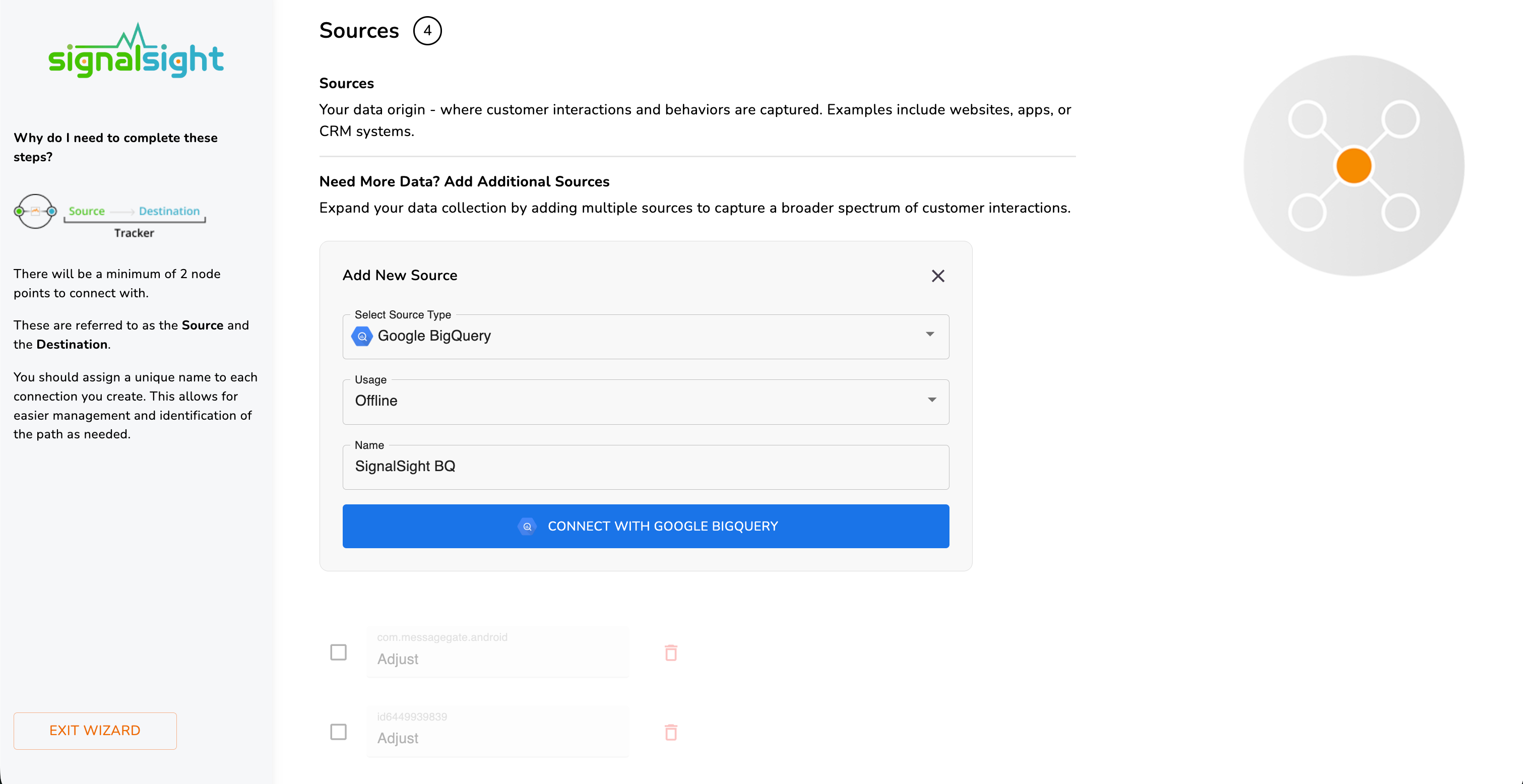
Step 1 — Source Type and Usage
- In Select Source Type, choose Google BigQuery.
- Set Usage to match your primary data type. For offline store sales, POS exports, and CRM conversion rows, select Offline.
- Enter a Name to identify this source in your account (for example,
SignalSight BQ). - Click Connect with Google BigQuery to start Google OAuth.
Step 2 — Google Authentication
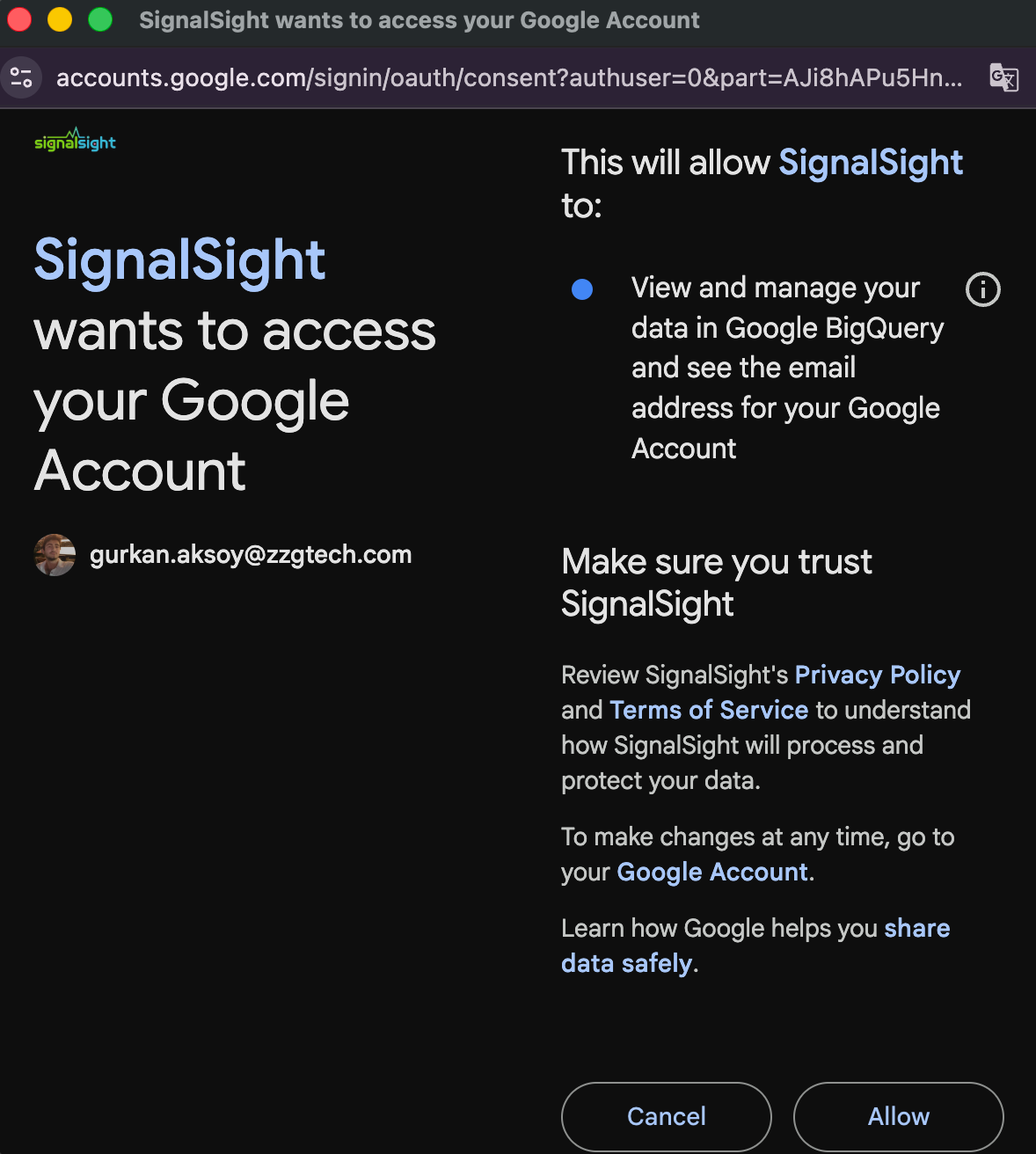
Sign in with the Google account that has access to your BigQuery project. Grant SignalSight permission to view and manage data in BigQuery. This authorization lets SignalSight read the project, dataset, and table you select in the next steps.
Step 3 — Project and Dataset
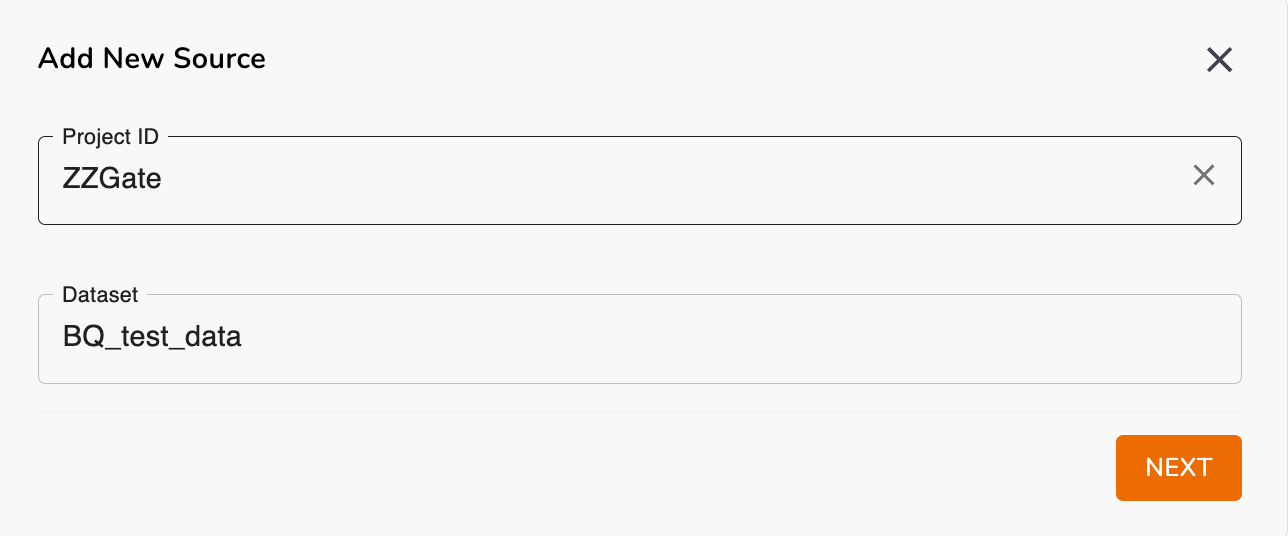
- Enter your Project ID — the Google Cloud project that contains your BigQuery dataset.
- Enter the Dataset name where your table is stored.
- Click Next to continue to table and sync settings.
Step 4 — Table and Sync Settings
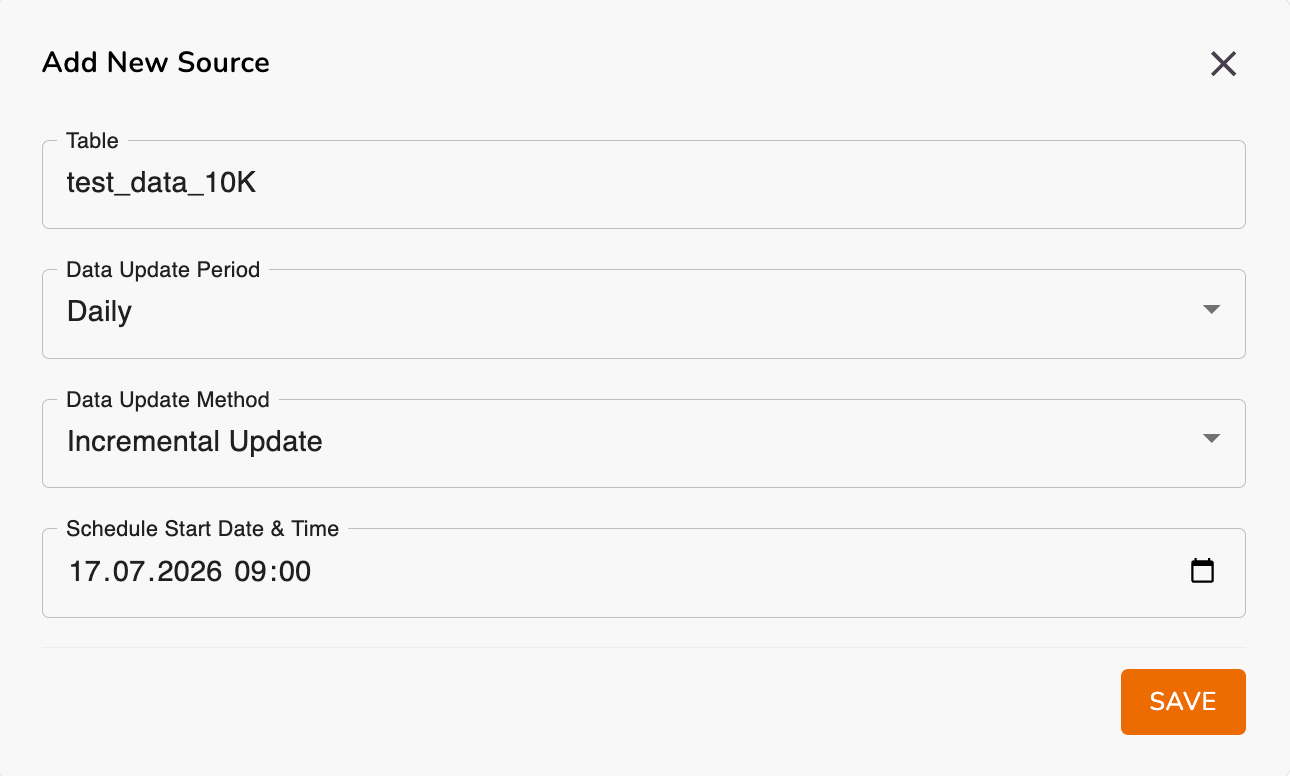
Select the BigQuery table SignalSight should read and define how often new rows are ingested. These settings control the automated sync that keeps your offline events or audience lists up to date.
- Table — choose the table that holds your customer or transaction data.
- Data Update Period — how often SignalSight checks for new data (for example, Daily).
- Data Update Method — Incremental Update processes only new or changed rows since the last sync; use a full refresh method when your table is fully replaced each run.
- Schedule Start Date & Time — when the first scheduled sync should run.
- Click Save to store these settings and proceed to field mapping.
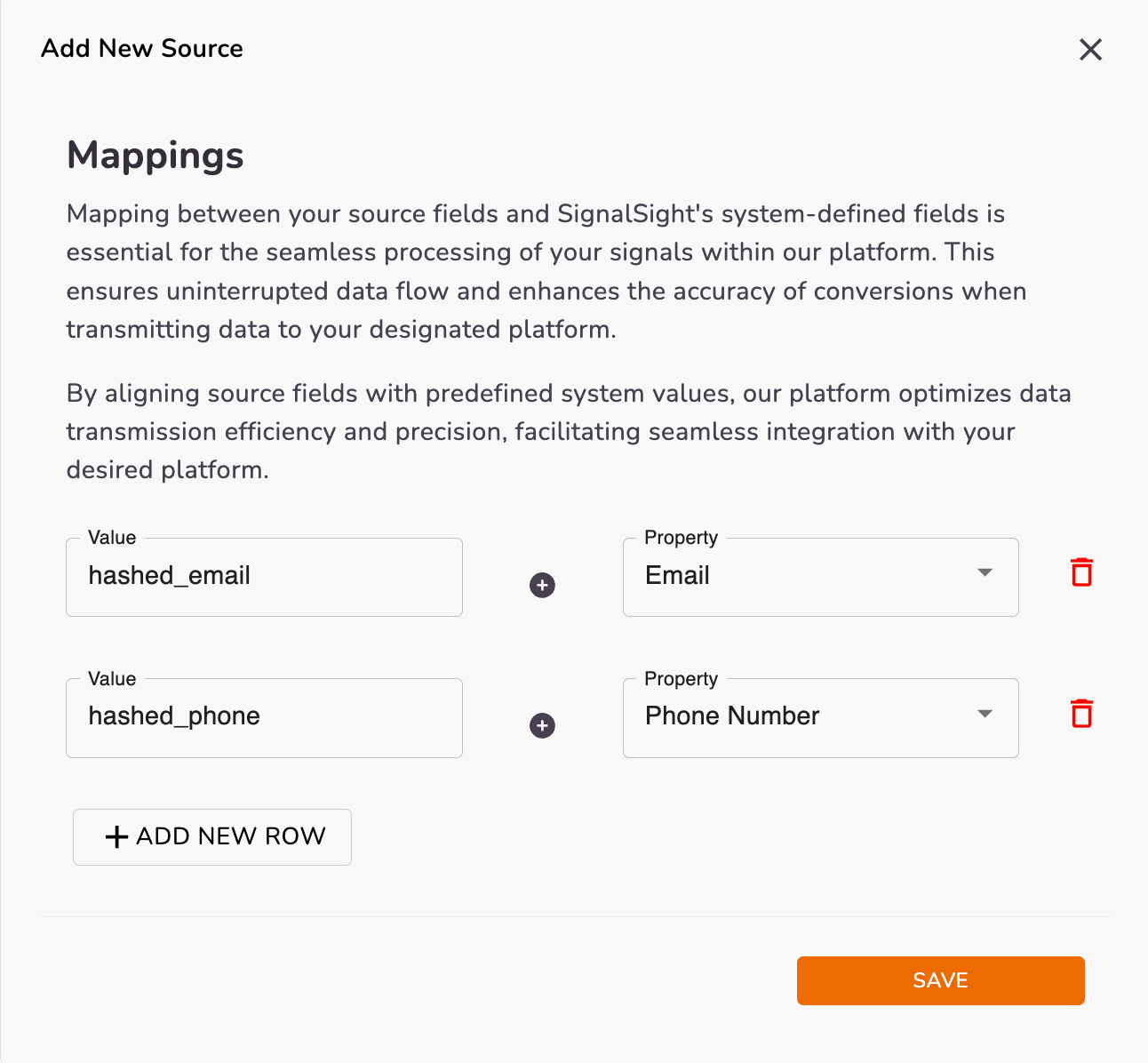
Step 5 — Field Mapping
Map each BigQuery column to the corresponding SignalSight property. Correct mapping ensures events and audience records reach ad platforms with the right identifiers and attributes.
- In the Value field, enter the BigQuery column name (for example,
hashed_emailorhashed_phone). - In Property, select the matching SignalSight field — Email, Phone Number, transaction amount, event name, or other supported properties.
- Click Add New Row for each additional column you need to forward.
- Click Save when mapping is complete.
Create a Tracker
With the BigQuery source saved, create a tracker to connect it to a destination. The destination type you choose determines whether data flows as offline conversions or as audience updates.
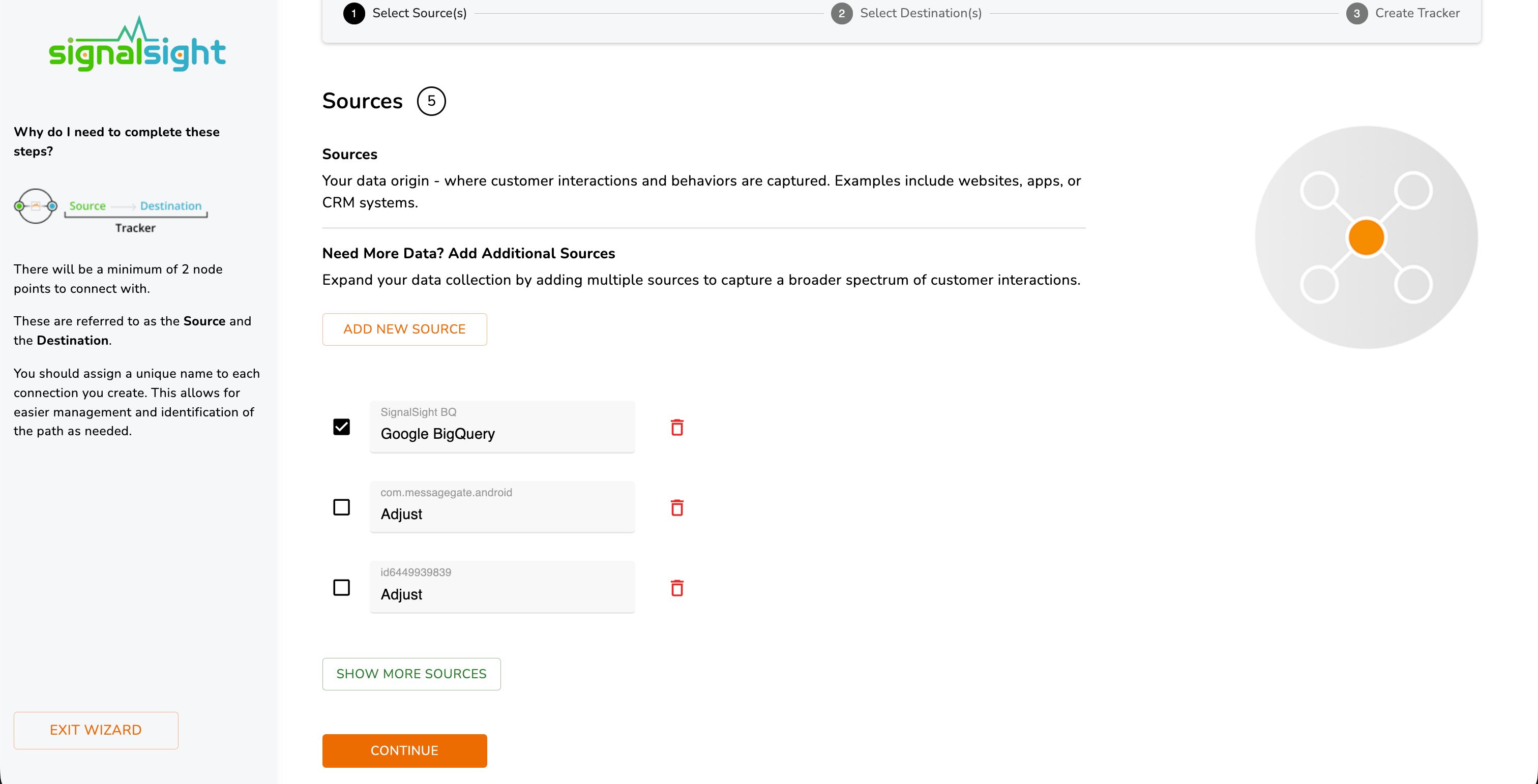
Step 1 — Select Source
In the tracker wizard, open Select Source(s) and check your Google BigQuery source. Click Continue to move to destination selection.
Step 2 — Choose a Destination by Use Case
This is where you define what SignalSight does with your BigQuery data. Pick the destination that matches your goal:
Use Case — Offline Sales & Conversions
When your BigQuery table contains in-store purchases, POS receipts, CRM won deals, or other offline conversion events, connect the source to an offline events destination — such as Meta Offline Conversions, TikTok Offline Events, or Google offline imports configured on your tracker.
- Map transaction fields (amount, currency, store ID, event time) during the mapping step so platforms can attribute revenue correctly.
- Scheduled incremental syncs keep campaign learning current as new sales land in BigQuery.
- See Offline Events API and TikTok Offline Events API for payload and event requirements.
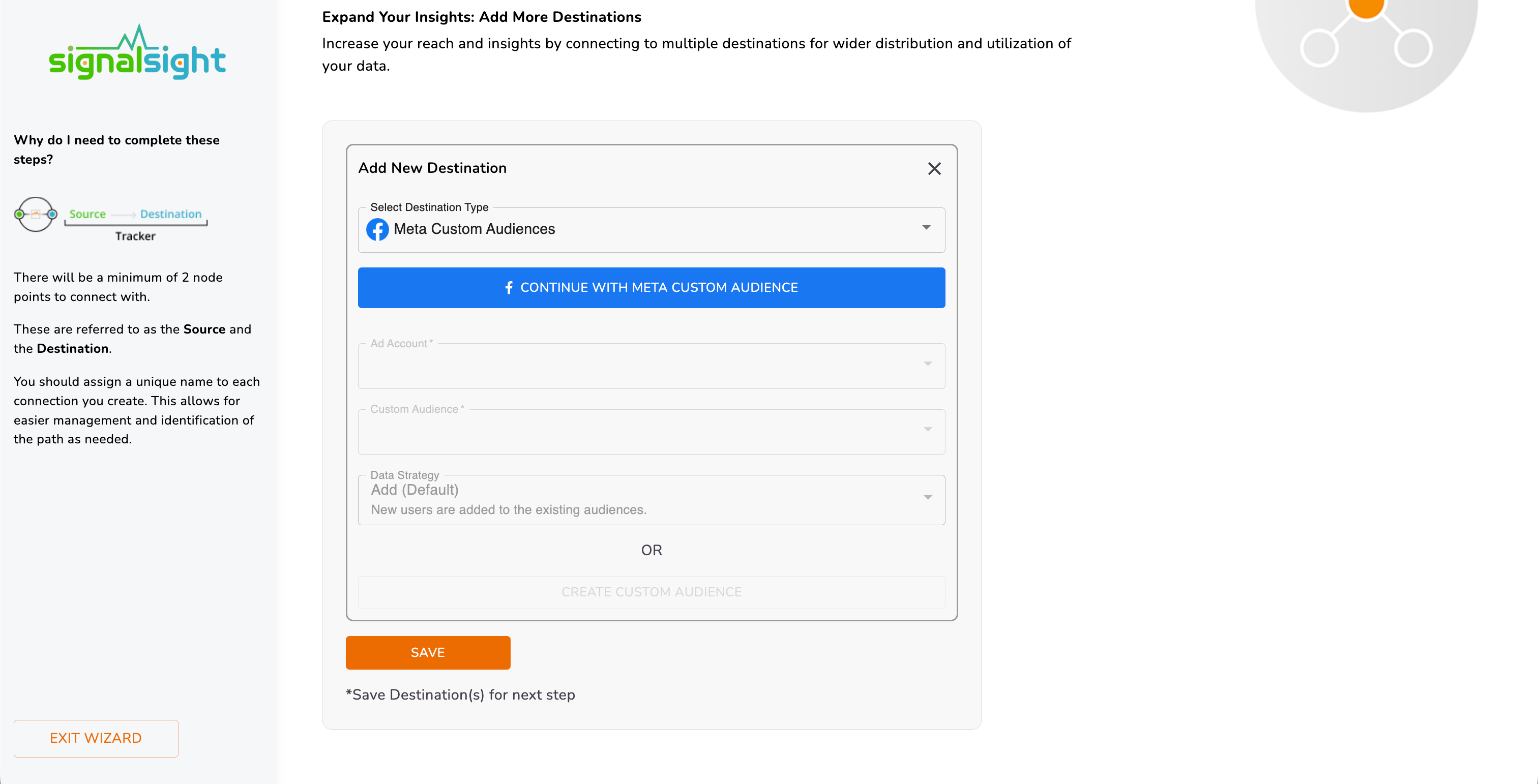
Use Case — Audience Sync & Learning
When your goal is to feed customer lists into ad platforms for retargeting, lookalike seeding, or ongoing audience learning, choose an audience destination instead of an offline events destination. SignalSight reads hashed identifiers from BigQuery on your schedule and adds or updates records in the target audience automatically — no manual CSV uploads.
- In Select Destination Type, choose an audience integration such as Meta Custom Audiences.
- Authenticate with the ad platform and select the Ad Account and Custom Audience (or create a new audience).
- Set the Data Strategy — for example, Add to append new users to an existing audience on each sync.
- Save the destination and complete the tracker. SignalSight handles recurring syncs from BigQuery to keep the audience fresh for platform learning.
Step 3 — Name and Complete
Give your tracker a descriptive name, review the source and destination summary, and click Complete. You can return to the tracker at any time to adjust mapping, change sync schedules, or switch destinations for a new use case by creating a separate tracker against the same BigQuery source.
Manage Your Source and Tracker
- Edit Mapping — update column-to-property mappings when your BigQuery schema changes.
- Sync schedule — adjust update period, method, or start time from the source settings.
- History — review delivery logs on the tracker detail page to confirm rows are syncing as expected.
- Multiple trackers — reuse one BigQuery source across separate trackers if you need both offline conversion reporting and audience sync from the same table.
Can I use the same BigQuery source for offline sales and audiences?
Yes. Create one BigQuery source with your project, dataset, table, and mapping, then attach it to separate trackers — one with an offline events destination and another with an audience destination — depending on what each workflow needs.
What is the difference between Incremental Update and a full refresh?
Incremental Update syncs only new or changed rows since the last run, which is ideal for growing transaction or customer tables. A full refresh reprocesses the entire table each cycle — use it when your dataset is fully replaced on each export.
Which BigQuery columns should I map for audience sync?
At minimum, map hashed email and/or hashed phone columns to the corresponding SignalSight properties. Additional fields can improve match rates depending on the destination platform's requirements.
Which columns do I need for offline sales?
Map identifiers (hashed email, phone, or platform-specific keys), transaction value, currency, event time, and any store or location fields your offline events destination expects. Refer to the Offline Events API documentation for platform-specific schemas.
How often does SignalSight read from BigQuery?
You control this with Data Update Period and Schedule Start Date & Time when configuring the source. SignalSight runs automated syncs on that schedule using the update method you selected.