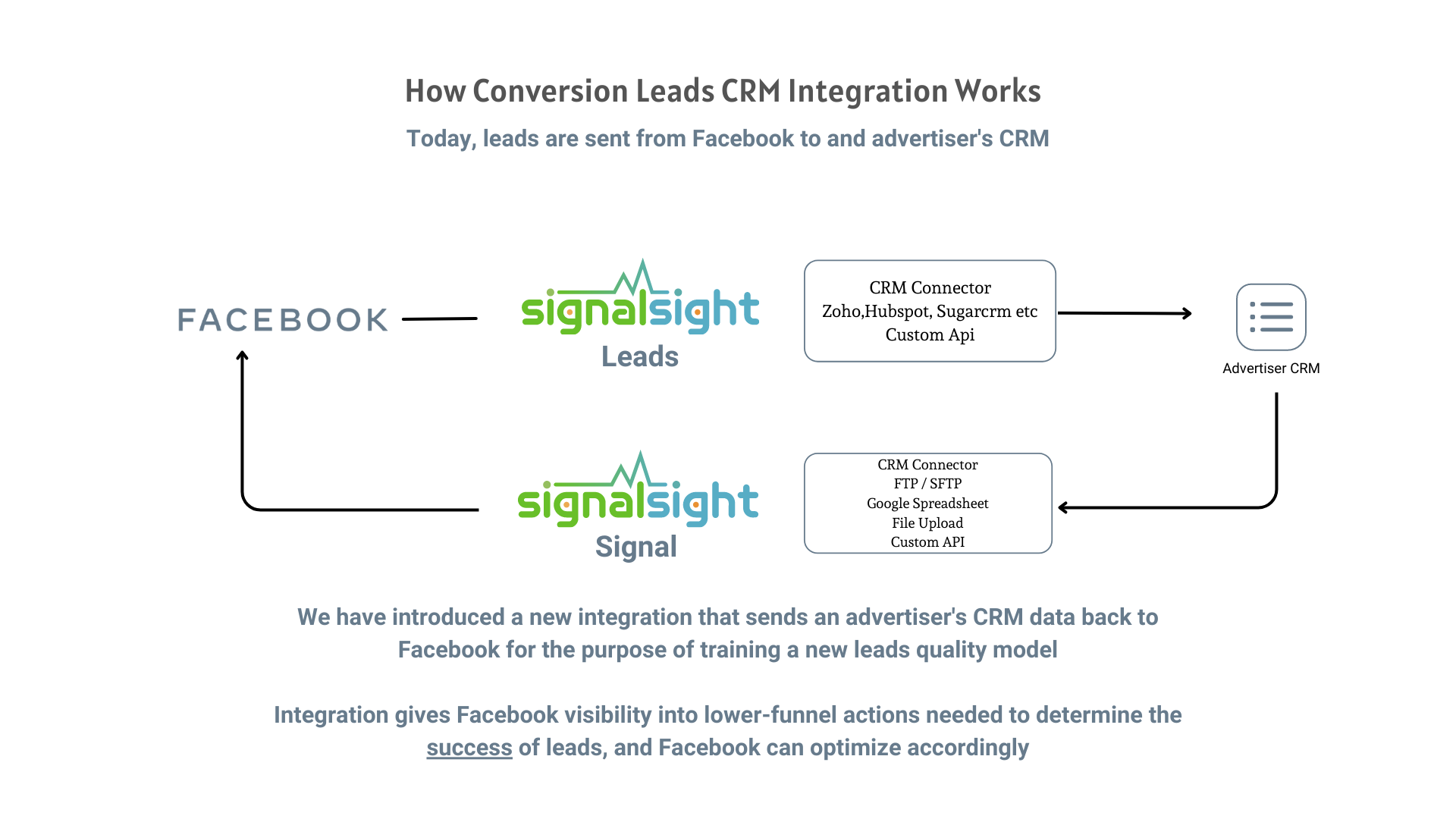
SignalSight Conversion Lead lets you use a Google Spreadsheet as a lead data source. When lead statuses change in your sheet, those events flow back to Meta so campaigns optimize toward meaningful outcomes — without a traditional CRM integration.
Before you start
You need a Google account with the target spreadsheet, a SignalSight account, and a Meta CRM Pixel set up in Events Manager. For Pixel ID and access token steps, see Meta (Facebook) CAPI Setup. New users can start with Account Creation.
Get Started
Conversion Leads closes the loop between Meta lead ads and your downstream funnel data. SignalSight reads lead updates from your spreadsheet and sends them to Meta via the Conversions API — giving Meta visibility into which leads convert and which don't.
Open the Tracker Creation Wizard under Signal → Trackers and click Create Tracker.
Create a Tracker
Step 1 — Google Spreadsheet Source
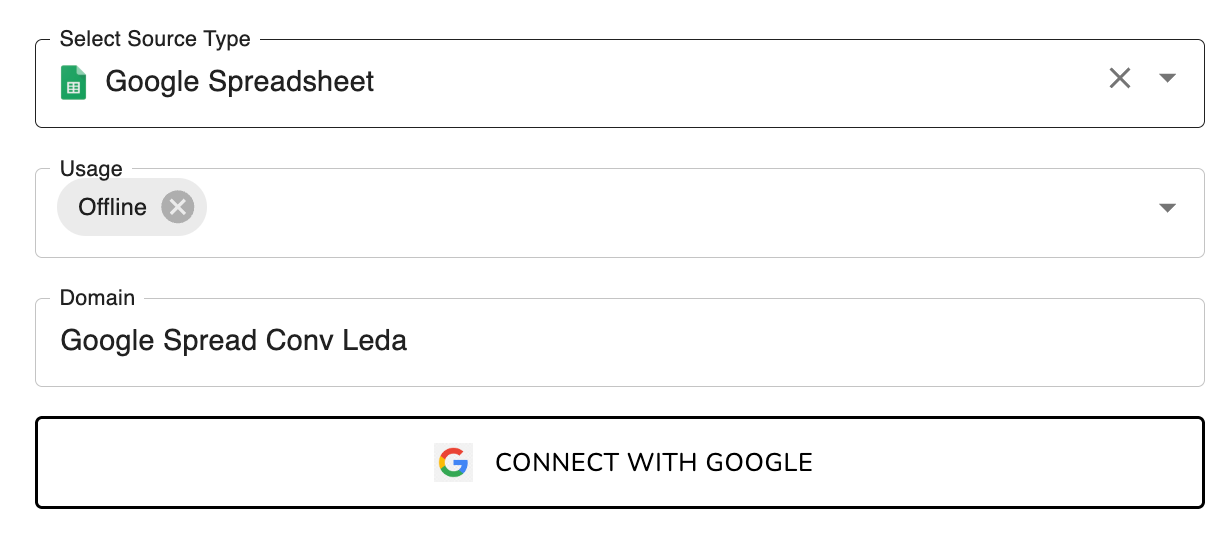
- Select Google Spreadsheet as the source type and enter a name for the source.
- Fill in the Domain field with your site URL (any valid domain works for this source type).
- Click Connect with Google and sign in to grant SignalSight access to your Google account.
- Select the spreadsheet you want to use, then click Next.
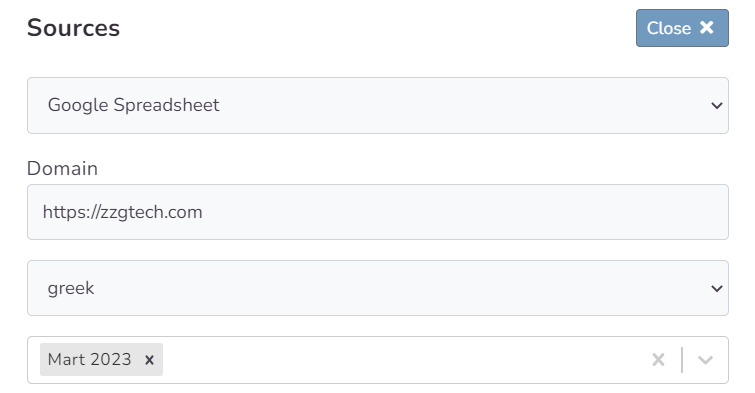
Map the columns in your sheet to the required lead fields — including leadgen ID — so Meta can match spreadsheet rows to the leads it generated.
Step 2 — Meta CAPI Destination
Create a Meta Conversions API destination. Enter your CRM Pixel ID and access token manually, or use Connect Facebook CAPI to sign in and select the Pixel from your account.
Note
The Pixel must be a CRM Pixel — not your website Pixel. In Events Manager, click Connect Data Sources, select CRM, then Connect. Create a new dedicated Pixel (recommended) so CRM events stay separate from your web Pixel.
Step 3 — Name and Complete
Name your tracker, review the source and destination summary, and click Complete to finish the wizard.
Manage Your Source
Open your tracker at any time to update column mapping or review sent event history. SignalSight reads changes from your connected spreadsheet on a schedule — keep lead statuses up to date in the sheet for accurate event delivery.
Note
Changing mapping on campaigns that have already finished learning may restart Meta's learning phase. Update mappings carefully once ads are live.
What Happens Next
Once events start flowing from your spreadsheet, complete the funnel setup in Meta Events Manager. The three guides below cover everything after tracker creation:
- Validation Phase — Meta's 7-day validation window and how to resolve errors.
- Define Your Sales Funnel — map events to funnel stages and set your optimization target.
- Run Conversion Leads Campaigns — campaign objective, ad set, and Conversion Leads optimization settings.
Frequently Asked Questions
Do I need a CRM to use Google Sheet Conversion Leads?
No. A Google Spreadsheet is the source — useful when leads are tracked in a sheet instead of a CRM, or when you export CRM data to a sheet for SignalSight to read.
What columns does my spreadsheet need?
Your sheet must include leadgen ID and lead status fields mapped during source setup. These let Meta match rows in your sheet to the leads it generated from your ads.
How does SignalSight access my Google Sheet?
Click Connect with Google during source setup and grant access when prompted. SignalSight reads the spreadsheet you select — no manual file uploads required after the initial connection.
Can I switch to a different spreadsheet later?
Yes. Open the tracker detail page and update the Google Spreadsheet source configuration. Re-map columns if the new sheet has a different structure.