Snapchat Conversions API sends website events server-side for higher match rates and more reliable delivery than browser-only Snap Pixel tracking. SignalSight handles the server connection — you configure a tracker in the dashboard and update your tag setup so events flow without duplication.
Before you start
You need a SignalSight account and a Snapchat ad account with a Pixel. If you haven't signed up yet, follow Account Creation first.
Create a Tracker
Open the Tracker Creation Wizard under Signal in the left menu (or go to Trackers → Create Tracker).
Step 1 — Website Source
Select Website Javascript as the source type and enter your site URL. You can use the generic domain assigned to you for a quick start, or disable it and enter a custom subdomain for first-party tracking. A custom subdomain is recommended — see Why Create a Subdomain? and How to Create a Subdomain in the Meta CAPI guide (the DNS process is the same).
Save the source and click Next.
Step 2 — Snap Destinations
Snapchat CAPI requires two destinations on the same tracker:
- Snap Pixel — click + Add Destination, select Snap Pixel, enter your Pixel ID, and save.
- Snap Conversions API — click + Add Destination again, select Snap Conversions API, enter your Pixel ID and Access Token, and save.
Click Next when both destinations are configured.
Step 3 — Name and Complete
Name your tracker, review the source and destination summary, and click Complete. The tracker detail page lets you add or remove sources and destinations at any time.
How to Find Your Pixel ID
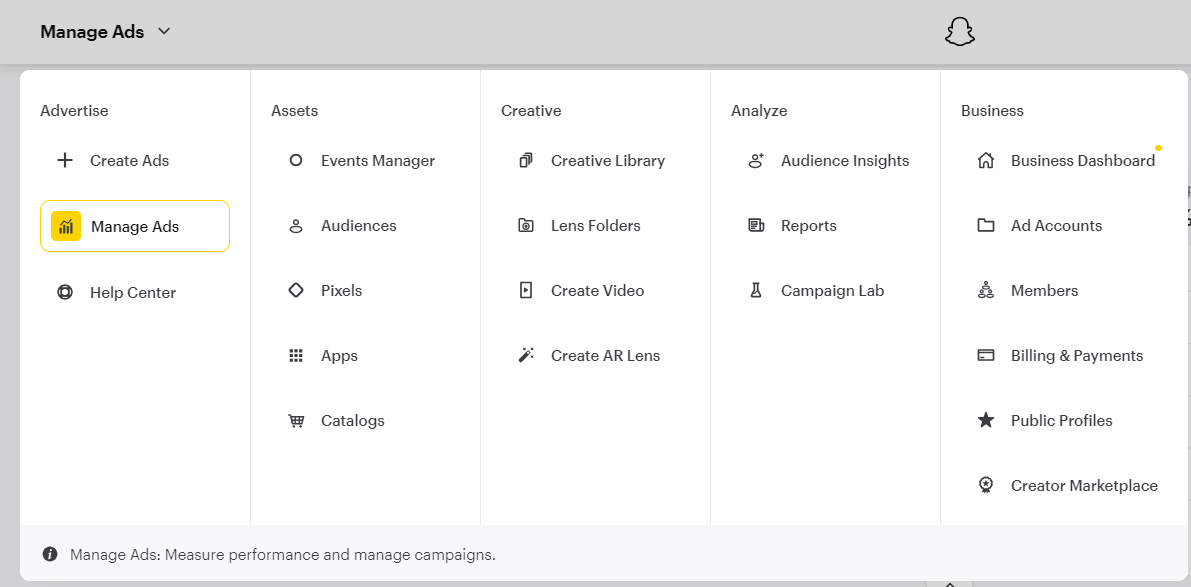
Log in to Snapchat Ads Manager. Click Manage Ads in the top-left corner, go to Assets, and select Pixels.
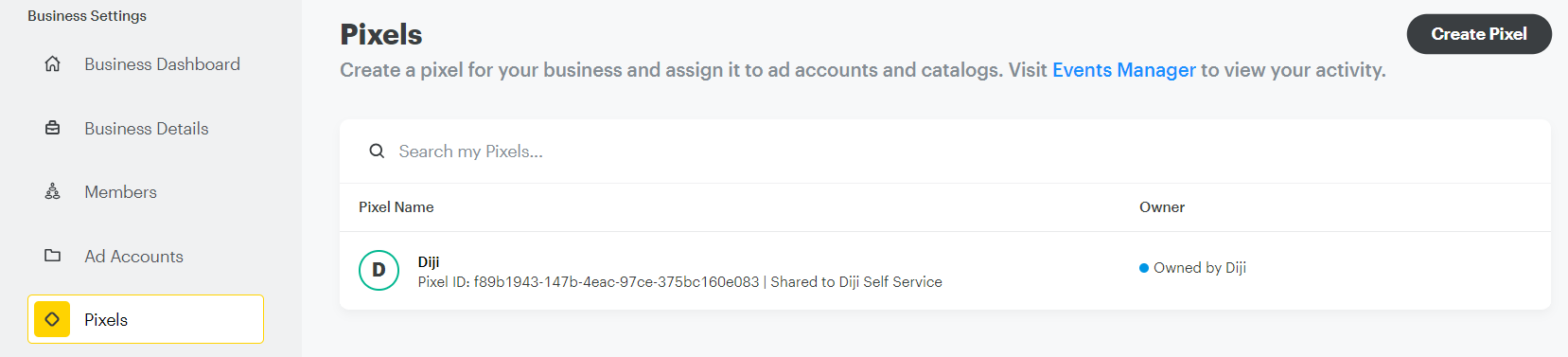
Browse your pixels and copy the Pixel ID shown under the pixel name.
How to Generate an Access Token
Snap Conversions API requires an access token in addition to the Pixel ID:
- Log in to Ads Manager and open the menu in the top corner.
- Select Business Details.
- Under OAuth App, find the Conversions API Tokens section and click Generate Token.
- Copy the token and paste it into the Snap Conversions API destination in SignalSight.
Add Snapchat to an Existing Tracker
Open Trackers from the left menu and select the tracker you want to extend. On the tracker detail page, click Add New Destination under the destinations section.
- Choose an existing Snap destination from the list, or click Create a new to set up a fresh one.
- Add both Snap Pixel and Snap Conversions API — the same two-destination setup as a new tracker.
GTM / Frontend Code Activation
Tag Manager experience required
This step requires familiarity with Google Tag Manager. If you're not the person managing your tags, share this section with your technical team.
Open your Tag Manager workspace and search for Snapchat tags (snaptr).
- Open the Snapchat Base Code tag and comment out the lines starting with
snaptrby prefixing them with//. Save the tag. - Pause all other Snapchat tags so only SignalSight handles event firing.
- Search for
p2sqto find your SignalSight tags. In the loader URL, add-scafter the version number — for example, changev4.2/your-alias-codetov4.2-sc/your-alias-codeto enable Snapchat event routing. - Click Preview in GTM to verify tags fire correctly. Use the Snap Pixel Helper browser extension for additional testing.
Note
For the full event snippet reference and p2sq.push() examples, see Basic CAPI Installation.
Consent Management & Data Privacy
To comply with data protection regulations (GDPR, CCPA, and similar frameworks), only activate tracking scripts after the user has given consent through your Consent Management Platform (CMP). SignalSight respects your consent configuration — events are not sent until consent is granted.
Frequently Asked Questions
Why do I need both Snap Pixel and Snap Conversions API?
Snap Pixel captures browser-side events while Snap Conversions API sends them server-side for more complete coverage. SignalSight sets up both and deduplicates so the same action isn't counted twice.
What does adding -sc to the loader URL do?
The -sc suffix tells the SignalSight loader to route events to Snapchat alongside your other connected destinations. Without it, Snapchat-specific server-side delivery may not activate.
Do I need to pause my existing Snapchat GTM tags?
Yes. Comment out snaptr calls in the Snapchat Base Code tag and pause other Snapchat tags. SignalSight takes over event firing to avoid duplicate signals.
Can I add Snapchat to a tracker that already has Meta CAPI?
Yes. Open the tracker detail page and add Snap Pixel and Snap Conversions API as new destinations. One tracker can route the same source events to multiple ad platforms.